 ThreadTrim
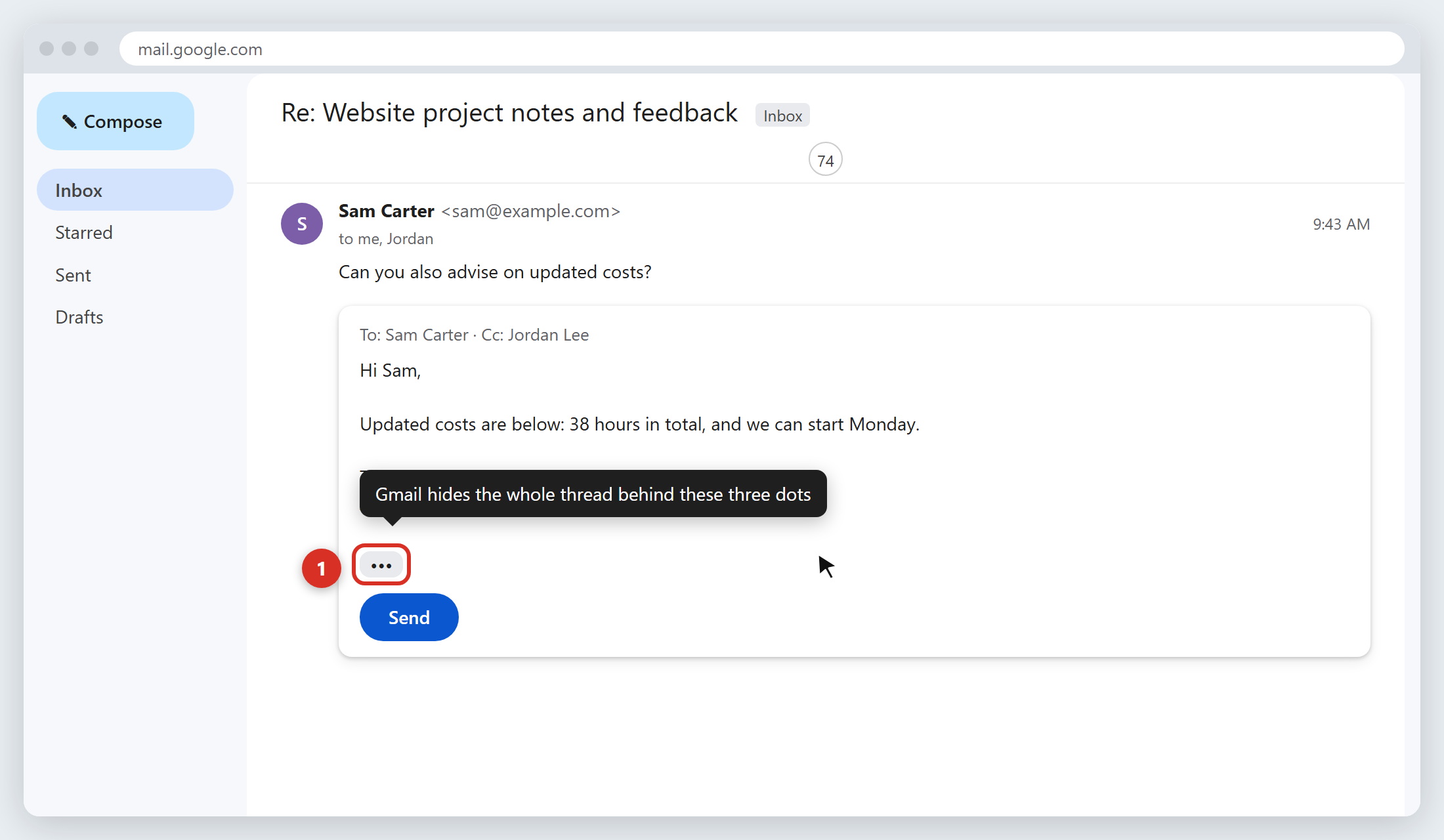
You click Reply in Gmail and there’s a small grey button with three dots at the bottom of the box. Hover over it and Gmail calls it “Show trimmed content”. Here’s what’s behind it, why it matters, and how to show it or get rid of it.
What “trimmed content” means in Gmail
When you reply to an email, Gmail copies the message you’re answering (and everything quoted inside it) into your draft. To keep the reply box tidy, it collapses that copy behind a three-dot button. That collapsed block is the “trimmed content”.
You’ll see the same idea on emails you receive. When someone replies to you and Gmail recognises the quoted history in their message, it hides it behind the same three dots, sometimes labelled “Quoted text hidden” in older layouts and in printouts.
Is trimmed content sent to the other person?
Yes. This is the part most people don’t realise. “Trimmed” only describes what you see on your screen. The quoted history is still part of the email, and it goes out in full when you hit Send.
On a long thread that adds up quickly: each reply carries every previous reply, so a one-line answer can arrive with dozens of old emails underneath it. If the other person uses Outlook or another email app, they often see that whole history expanded rather than tucked away.
How to show trimmed content
- In a reply you’re writing: click the ••• at the bottom of the reply box. The quoted thread expands inside your draft.
- In an email you received: click the ••• at the bottom of the message to reveal the quoted history.
- In the Gmail app: tap the three dots or “Show quoted text” at the bottom of the message.
Can Gmail show trimmed content by default?
No. There’s no setting to always expand trimmed content. You have to click the dots each time. The same goes for the reverse: there’s no setting to stop Gmail adding it to your replies.
How to remove trimmed content from a reply
If you don’t want the old emails going out with your reply, delete them before you send:
- Click Reply and write your message.
- Click the ••• to expand the trimmed content.
- Select everything from the line “On … wrote:” down to the end and press Delete.
That’s it. Your reply stays in the same thread for everyone, because email apps group conversations using hidden headers, not the quoted text. We cover a faster keyboard method and more detail in How to Stop Gmail Including Previous Emails in Your Reply.
Add to Gmail, it’s free
ThreadTrim removes the quoted history from every Gmail reply automatically, with a one-click Undo. Free for 100 replies a month.
Should you remove it?
- Usually, yes. Everyone on the thread already has every earlier message in their inbox. The quoted copy is a duplicate.
- Your reply gets read. One line at the top of a short email stands out. One line above sixty quoted emails is easy to miss.
- Keep it when it helps. If you’re adding someone new to the conversation, the history gives them context. In that case, forwarding the thread is often clearer.
Frequently asked questions
What does “Show trimmed content” mean in Gmail?
It’s the label on the three-dot button in a Gmail reply or message. Clicking it reveals the earlier emails in the conversation that Gmail has quoted and hidden.
Does the recipient see trimmed content?
The trimmed content is sent with your reply. Gmail users usually see it collapsed again; people using Outlook and other apps often see it in full.
How do I get rid of trimmed content in Gmail?
Click the three dots in your reply, select the quoted text from “On … wrote:” down, and delete it before sending. A Chrome extension such as ThreadTrim can do this automatically.
Can I turn off trimmed content in Gmail settings?
No. Gmail has no setting to stop quoting previous messages in replies, and no setting to always show the trimmed content.
What is “Quoted text hidden” in Gmail?
It’s the same thing on a message you’ve received or printed: the earlier part of the conversation, collapsed so the new message is easier to read.
Stop sending the whole thread.
ThreadTrim removes the old quoted emails from your Gmail replies before you hit Send. Free for 100 replies a month.
Add to Gmail, it's free